

If your waveform sits above or below the zero line even in silence, you've got DC offset, and yes, it's worth fixing before you do anything else to the track. Tiny offsets that are very small are harmless and you can ignore them, but noticeable offsets need correcting now. Centre the waveform, remove the offset, and check the numbers before you touch EQ, compression, or gain.
TL;DR:
- Offsets above 0.01 on measurement scales can cause clipping, audible clicks, and inaccurate metering, making correction essential before mixing.
- Detect DC offset by inspecting silent sections for waveform displacement and verifying with amplitude statistics, especially values approaching 0.05 or higher.
- Fix offset by subtracting the mean value or using a high-pass filter set around 1 to 5 Hz, ideally at the hardware level to prevent recurring issues.
- Prevent DC offset proactively by engaging preamp high-pass filters, avoiding excessive gain, and regularly testing interfaces and cables for bias issues.
- Document all corrections clearly; once fixed, re-verify with meters and listening to ensure the waveform is centered and silent sections are flat.
Table of Contents
- What is DC offset in audio?
- Why DC offset matters more than it looks
- How do you detect and measure DC offset?
- How to fix DC offset step by step
- What DC offset removal can't fix
- Preventing DC offset before it reaches your session
- Verifying your fix: a simple checklist AubioMix relies on
- When to fix DC offset now versus later
- Check your mix after fixing the obvious issues
- Sources
What is DC offset in audio?
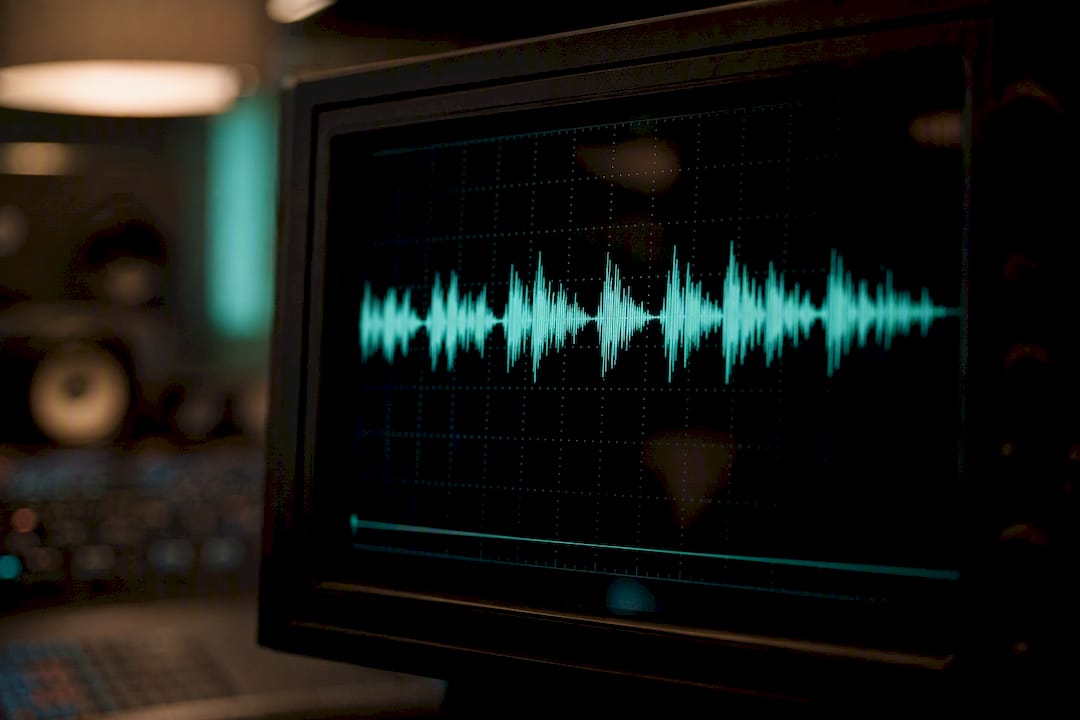
DC offset is a mean amplitude displacement from zero. Instead of your waveform sitting symmetrically around the centre line, it's shifted up or down, like someone nudged the whole thing off balance. You'll also hear it called DC bias, and the name gives away the physics: it's effectively a 0 Hz component riding underneath your actual audio signal.
Zoom into a quiet passage or a moment of silence and you'll see it clearly. Instead of a flat line at zero, you'll see a flat line that's sitting slightly above or below it. This almost always originates upstream in the analogue chain, before the signal ever hits your converter. Budget interfaces, older preamps, and vintage hardware are the usual suspects, according to AudioUtils' guide on DC offset. Modern professional interfaces tend to reject DC far more effectively.
Why DC offset matters more than it looks
A shifted waveform eats into your headroom before you've done anything creative with the track. If you normalise or push gain on a file with DC offset, you clip on one side of the waveform before the other, which means asymmetric distortion that's harder to predict and harder to fix later.
There are a few concrete ways this bites you in practice:
- Reduced headroom. The offset eats into your ceiling on one side, so normalisation or gain boosts clip sooner than you'd expect.
- Edit clicks. Cutting or splicing a clip with a non-zero mean creates a discontinuity at the boundary, which is audible as a click or pop, a problem Audacity's documentation flags directly.
- Metering inaccuracy. Peak and RMS readings can skew when the signal isn't centred, throwing off your gain-staging decisions downstream.
- Speaker and headphone stress. Rare, but a sustained large offset pushes a driver's cone or diaphragm off its resting position, adding physical strain over long sessions.
None of this is dramatic on a single low-level offset. But stack it across a session with dozens of tracks and it becomes a real source of inconsistent levels and mystery clicks.
How do you detect and measure DC offset?
Start with your eyes. Open a quiet section or a moment of silence in your DAW and look at where the waveform sits relative to the zero line. If it's hovering above or below centre rather than sitting flat, you've found it.
From there, move to numbers:
- Use your DAW's amplitude statistics. Most editors, including Audacity, will report a sample average or mean amplitude value when you select a region and check its statistics.
- Compare that value against practical thresholds. AudioUtils recommends treating offsets of 0.001 or below as negligible, values around 0.01 as worth correcting, and anything at 0.05 or above as high risk for visible clipping when you normalise.
- Cross-check with a listen. Play across edit points and listen specifically for clicks or pops, since those often reveal offset problems that a quick glance at the waveform misses.
Statistic to remember: an offset of 0.05 or higher is the point where normalisation starts causing noticeable, audible clipping issues, per AudioUtils' testing. Anything approaching that number deserves attention before you move on to mixing.
Run this check on every new recording chain you use, not just once. A preamp that's fine today can drift or fail later, and a five-second test file costs you nothing compared to discovering the problem mid-session.
How to fix DC offset step by step
The digital fix is straightforward: measure the average sample value across the file, then subtract that value from every sample so the waveform recentres on zero. Most DAWs package this as a "remove DC offset" option inside their normalise tool, which is exactly the approach Audacity's manual documents. You select the audio, run the effect, and it recentres the whole clip in one pass.
For signals where the offset drifts rather than sitting at a fixed value, a DC blocker is the better tool. This is a very-low-cut high-pass filter, typically set around 1 to 5 Hz, that rejects the 0 Hz component while leaving your actual audio content above it untouched. The bbx_audio documentation on DC blocker implementation describes this as a filter with near-zero attenuation at 20 Hz, so your sub-bass stays intact while the offset gets stripped out.
Fixing it at the hardware level saves you from repeating this process on every file:
- Engage the high-pass filter on your preamp, if it has one, before you start tracking.
- Check coupling capacitors and isolation transformers on older gear, since worn components are a common offset source.
- Swap suspect cables and inspect connectors, particularly on budget interfaces.
- Test the interface itself with a short silent recording to confirm it isn't introducing the problem.
Pro Tip: Always keep your original, unprocessed file before running any DC correction. If the recording clipped during tracking, removing the offset won't undo that damage, and you'll want the source file to compare against once you've fixed the bias.
Once you've applied a fix, re-run your meters, listen across every edit point again, and confirm the waveform sits flat in silent sections before moving on.
What DC offset removal can't fix
Removing DC offset recentres your waveform, but it doesn't give you back headroom you lost during tracking. If a sample clipped at the top of its range because the offset pushed it there, subtracting the mean afterwards won't unclip it. That damage is permanent, which is exactly why catching offset before or during recording matters more than fixing it in post.
There's also a distinction worth knowing between true DC and slow baseline wander. A constant offset sits at the same value across the whole file, and mean subtraction handles it cleanly. But some signals drift slowly over time, looking like DC in any short window you inspect, without actually being constant. Correcting that with a single global subtraction can leave residual bias in parts of the file or introduce new discontinuities. A gentle high-pass filter handles drifting bias far more reliably than blanket mean subtraction, since it tracks the changing baseline rather than assuming one fixed value for the entire recording.
Preventing DC offset before it reaches your session
Fixing offset after the fact works, but preventing it in the first place saves you the whole exercise. Good gain staging is the foundation: avoid pushing preamp gain to extremes, since some hardware introduces more bias under heavy gain than at moderate settings.
A few habits worth building into your tracking routine:
- Engage your preamp's high-pass filter where one is available, and test its effect on sub-bass content before committing to a full take.
- Record a short test file at the start of every session and check the waveform centroid before you commit to hours of tracking.
- Choose interfaces known for solid DC rejection rather than budget units with a track record of bias issues.
- Inspect cables and connectors periodically, since a worn cable can introduce offset that wasn't there last week.
Routine short test recordings catch problems in seconds rather than after a full session, which is a far better trade than discovering the issue during mixdown.
Verifying your fix: a simple checklist AubioMix relies on
A clean verification workflow follows four steps: detect the offset, remove it with the right method, verify the result numerically and by ear, and document what you did, including file names and the processing applied.
Aubiomix's mix analysis reports flag DC-related irregularities as part of a broader technical scan, alongside checks like clipping, phase, and frequency masking, so producers uploading a mix get a clear signal if bias is affecting the file before it ever reaches mastering. Consistent documentation matters here too. If you've corrected offset on a stem, note it, so nobody downstream duplicates the fix or misreads the metering.
When to fix DC offset now versus later
In a field recording rush, you rarely have time for a deep dive. Check the waveform, apply a quick fix if it's above 0.01, and move on. In a studio session with multiple takes, you've got more breathing room to diagnose whether it's a cable, a preamp, or a plugin, and fixing the source beats fixing every file individually. Either way, document what you changed. Prevention beats correction every time.
— AubioMix
Check your mix after fixing the obvious issues
Fixing DC offset, clipping, and edit clicks manually gets your file technically clean, but it doesn't tell you how your low end sits against reference tracks, whether your stereo width is working against you, or where frequency masking is eating clarity in your mix.

Aubiomix takes that next step. Upload your file and get automated metrics across more than 15 areas, from compression and EQ balance to stereo width and mastering readiness, alongside a written report with concrete steps to fix what's holding your mix back. It's not a replacement for the basic technical checks covered here. It's what comes after, once your file is clean and you want to know how it actually stacks up. See what a report looks like on the sample report page, or check where your low end sits against measured acoustic mixing benchmarks before you finalise a mix.
Sources
For deeper technical grounding, the Audacity manual covers detection and removal in detail, the DC bias entry on Wikipedia explains the underlying signal theory, AudioUtils offers practical thresholds, and the bbx_audio DC blocker documentation details filter-based correction.
- DC offset
- What Is DC Offset in Audio? How to Detect and Fix It | AudioUtils
- DcBlockerBlock - bbx_audio Documentation